Creating an Invoice
Follow these steps to create and fiscalise an invoice using the Excel Fiscalisation tool:
Steps
-
Open the Excel Template — Launch the downloaded Excel template provided for fiscalisation.
-
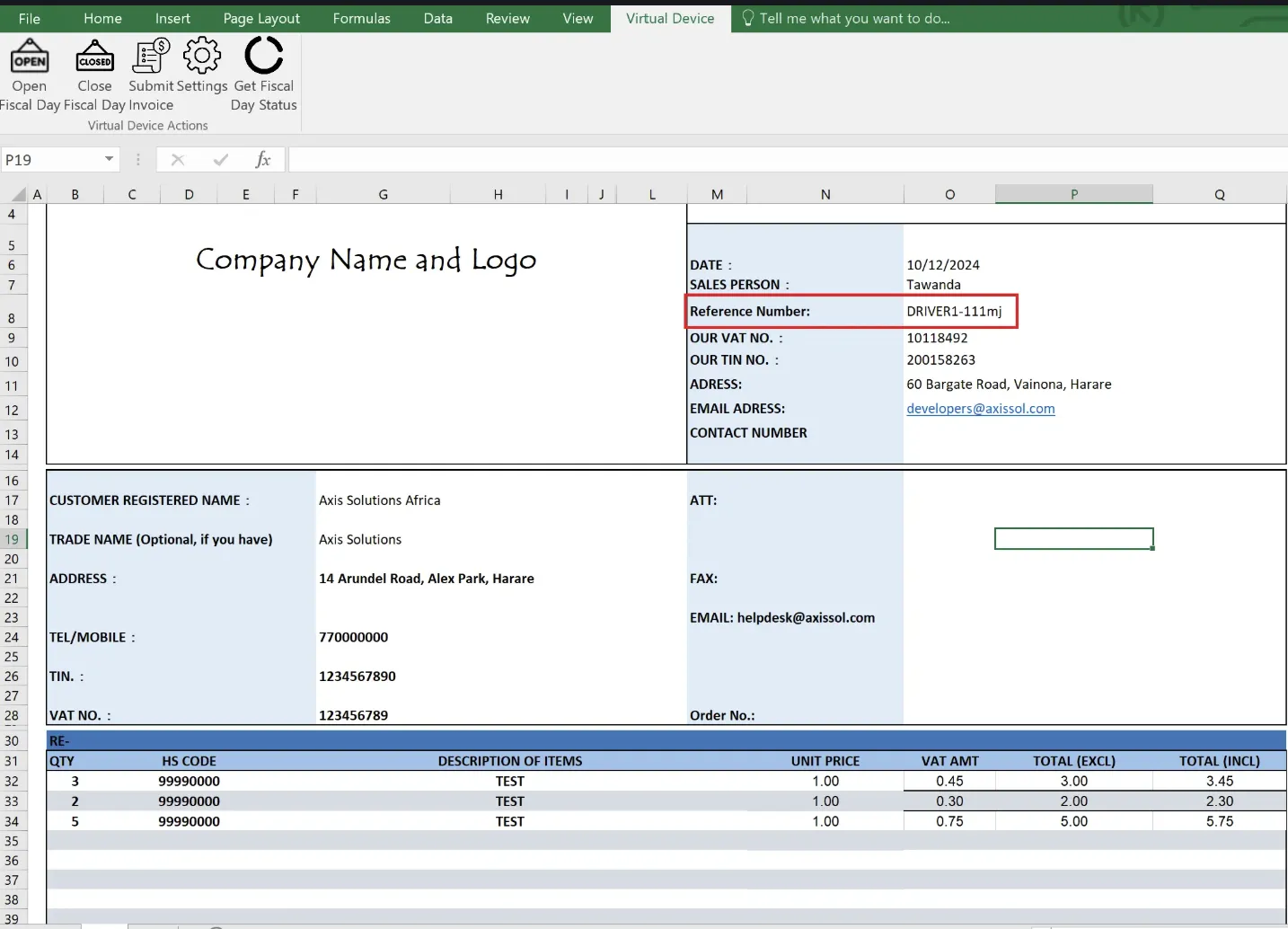
Update the Reference Number — Change the Reference Number to reflect the unique identifier for your invoice.
-
Insert Line Item Details — Fill in the necessary details for each line item, including:
- HS Codes
- Quantity (QTY)
- Description
- Unit Price
-
Automatic Calculations — The remaining fields, such as VAT amounts and Total amounts, will be automatically populated based on the entered data.
-
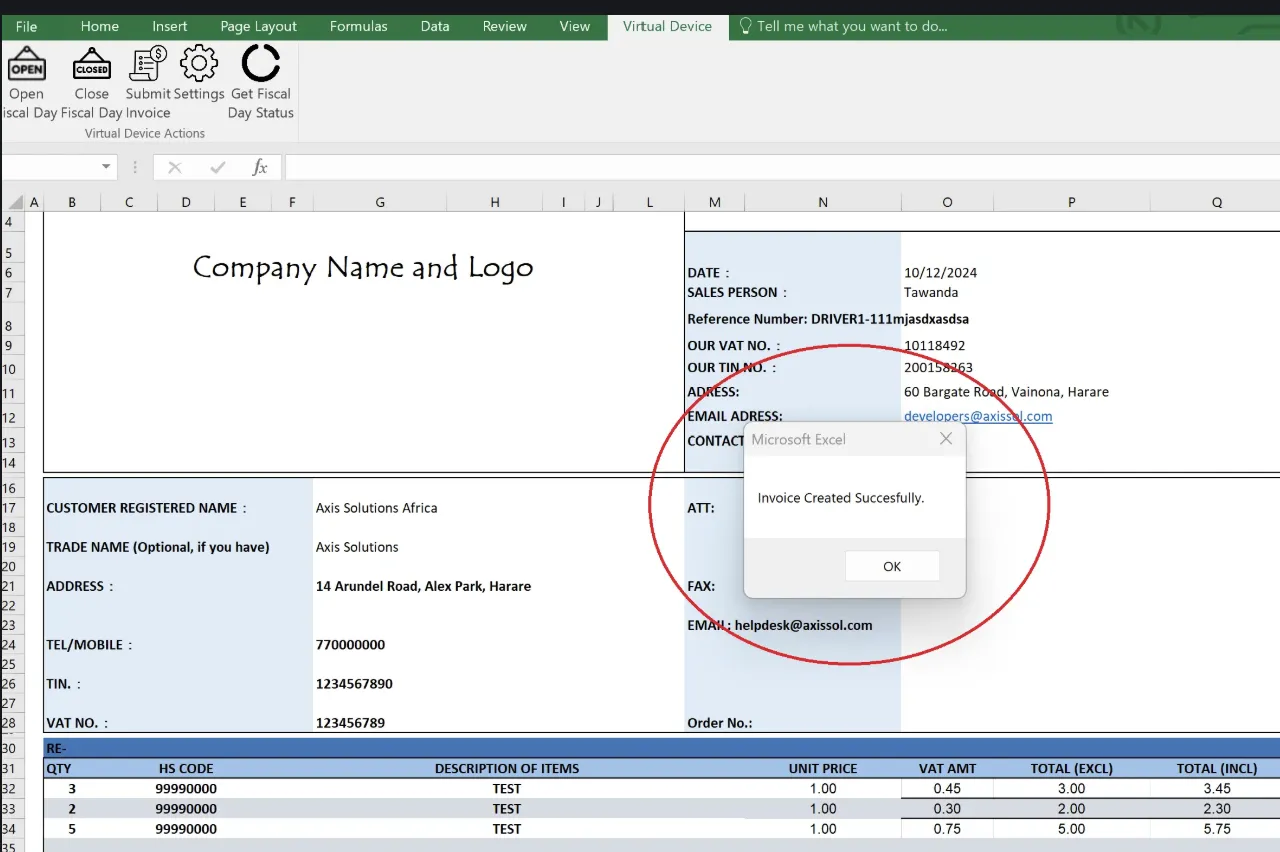
Submit the Invoice — Once the invoice is complete, click the Submit button in the Virtual Device tab. The invoice will be fiscalised, and a confirmation message box with “Invoice Created” will appear.
Fiscalised Invoices
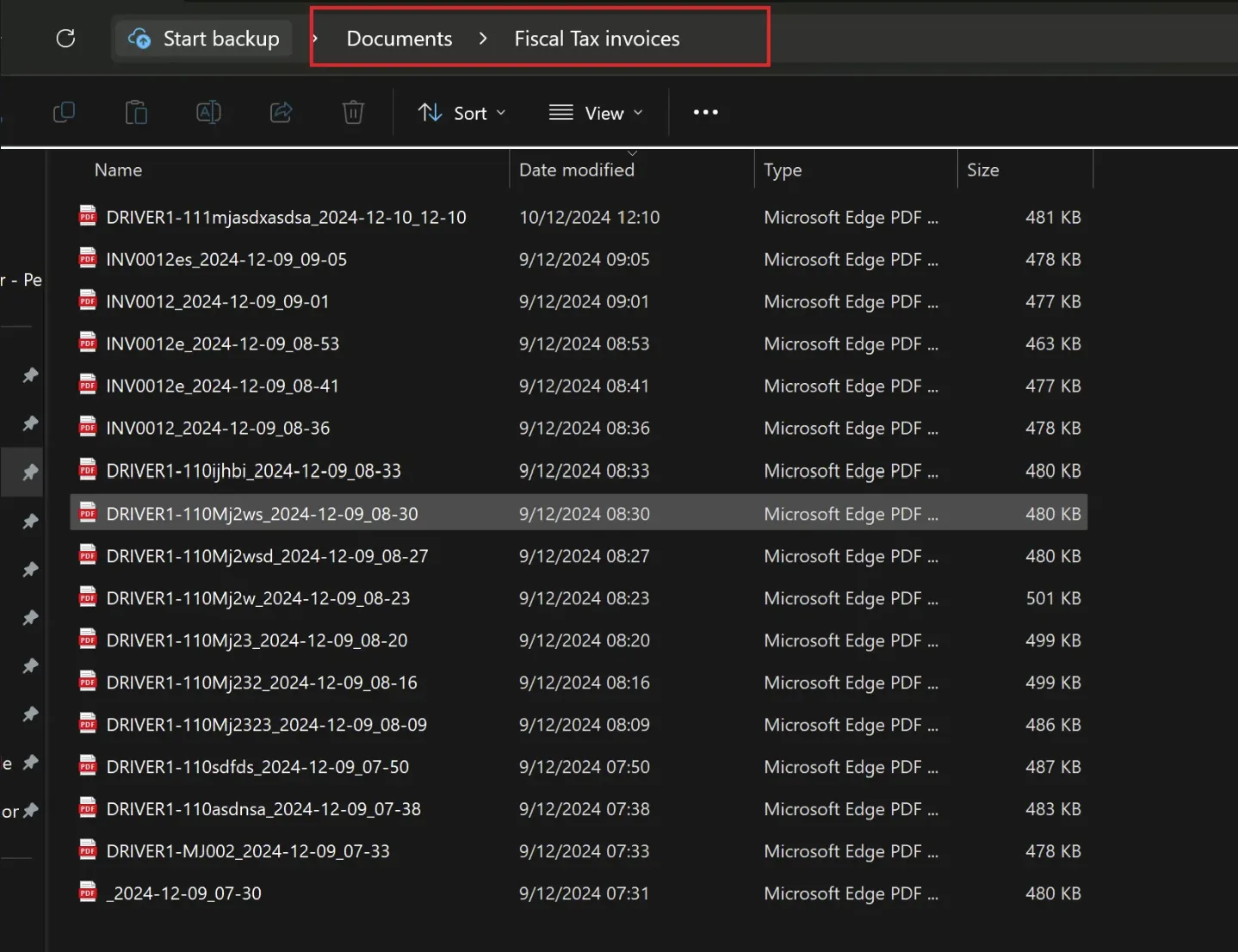
Once an invoice has been successfully fiscalised, it will be saved in the Documents folder of your machine under a folder named “Fiscal Tax Invoices”.
Notes
- Ensure all line item details are accurate before submitting the invoice.
- For assistance, contact support at helpdesk@axissol.com.