Fiscalising an Invoice
Printing the Invoice
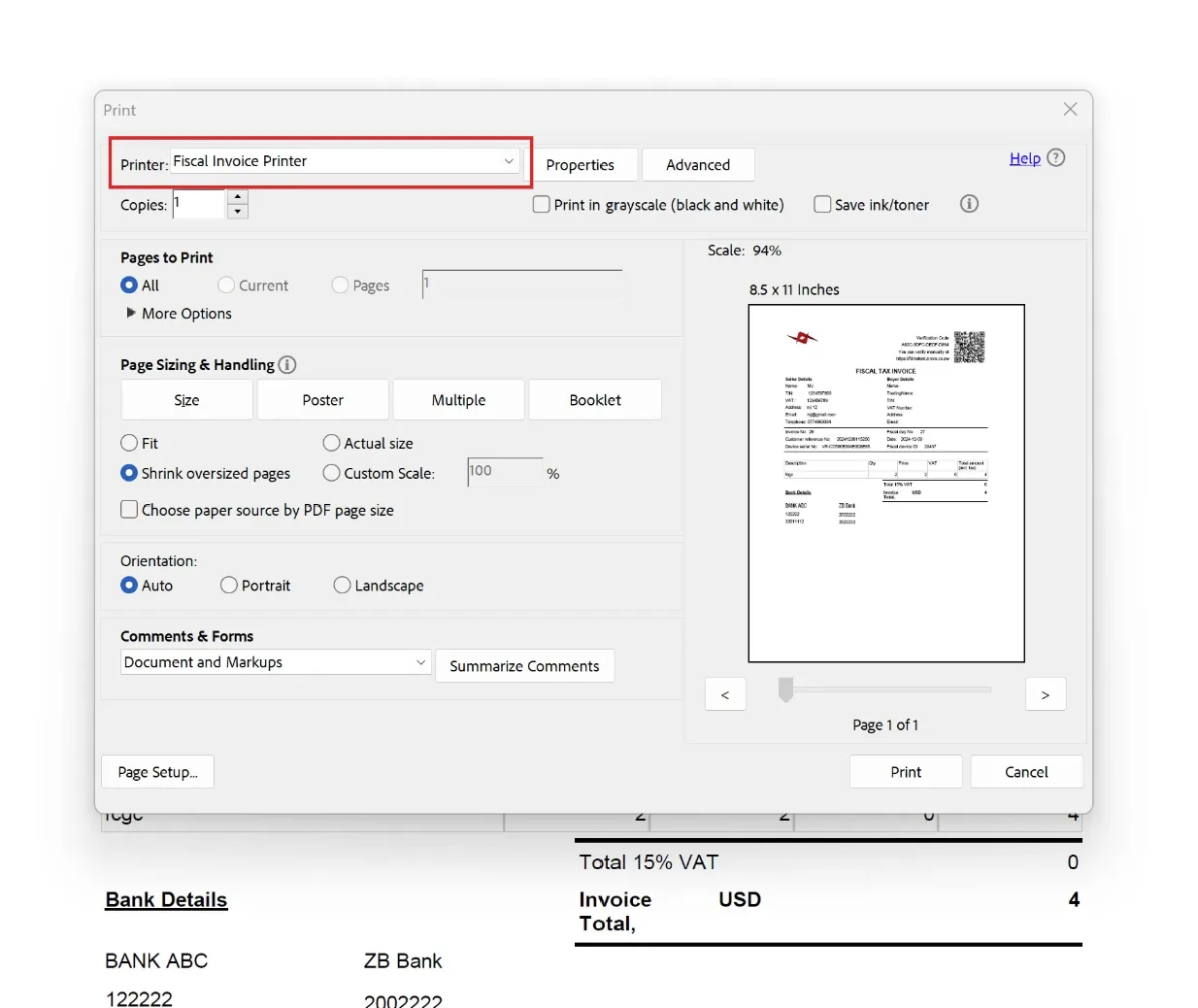
After creating an invoice in your accounting system, select Fiscal Invoice Printer from the list of available printer options.
Submitting the Invoice
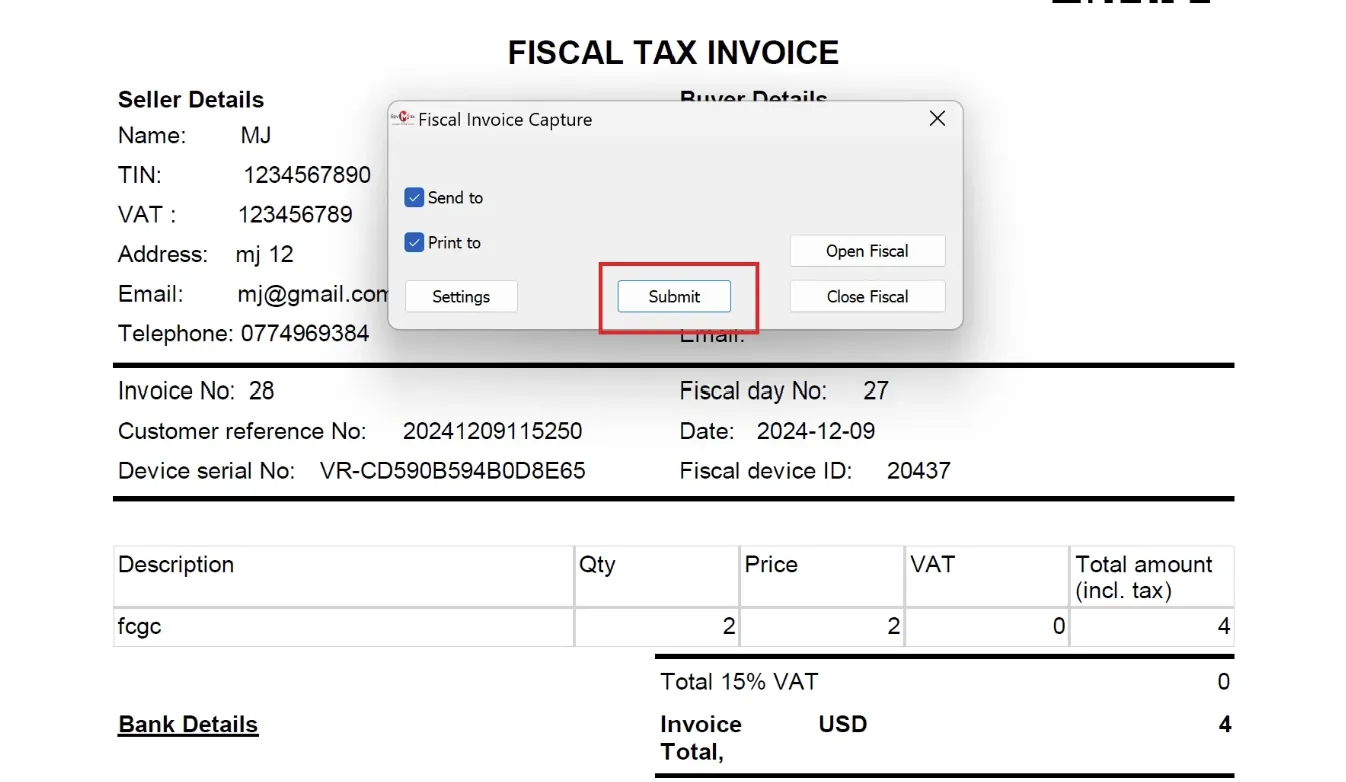
A Fiscal Capture pop-up window will appear. Click the Submit button to send the invoice to ZIMRA for fiscalisation.
Receiving the Fiscalised Invoice
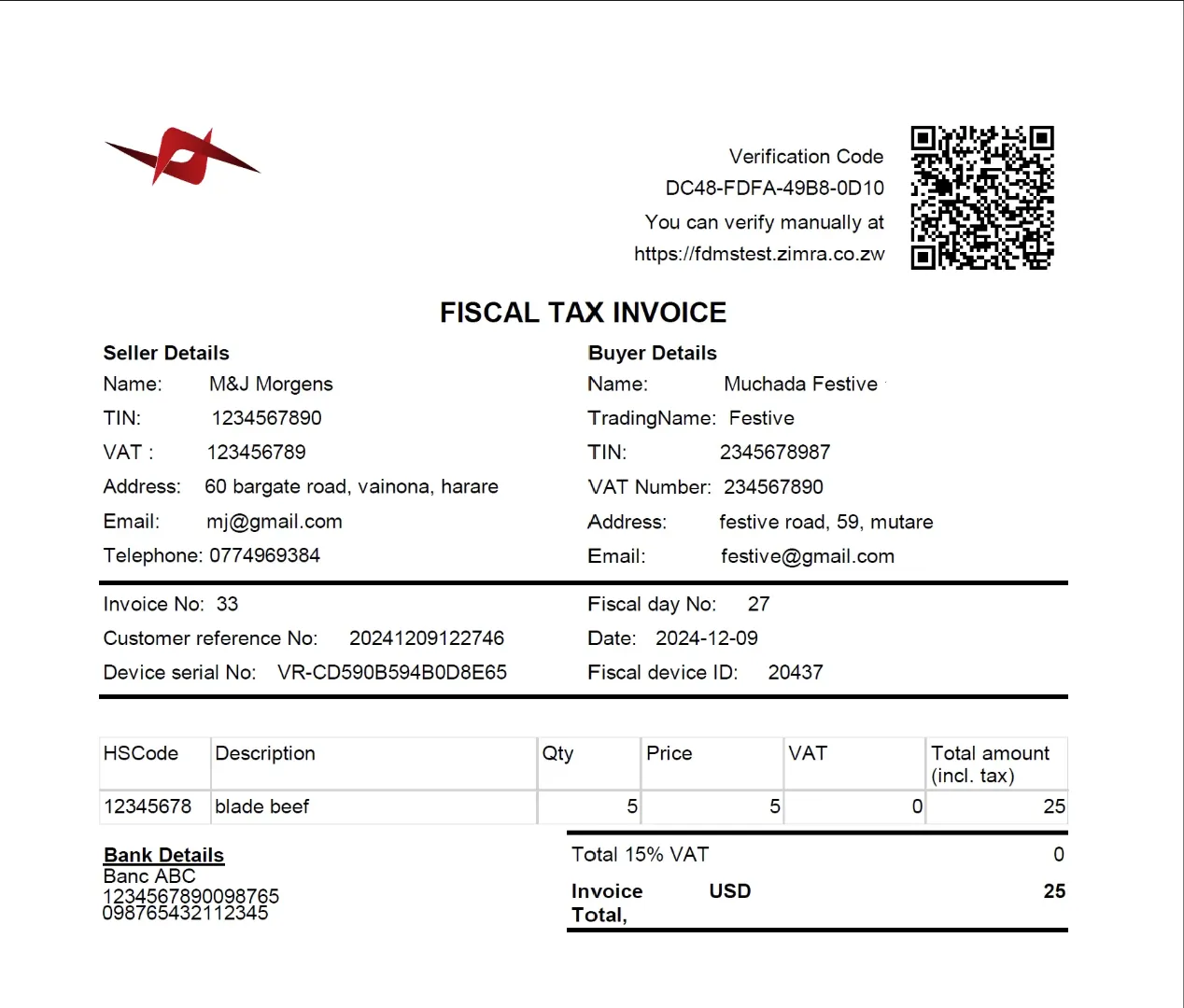
Once the invoice has been successfully fiscalised:
- If you selected a physical printer in the Fiscal Capture Settings, the fiscalised invoice will print as a hard copy.
- If you selected Microsoft Print to PDF in the Fiscal Capture Settings, you will be prompted to save the invoice as a PDF on your device.
For additional help, reach out to our support team at helpdesk@axissol.com.