Getting Started
Download the Excel Template and Application
After creating a virtual device, download the predefined Excel template and application using the link below:
Download Excel Template and Application
Installation
To install the application, run it as administrator on your machine. During installation, you will be prompted to:
-
Enter the Device ID for your virtual device.
-
Select the FDMS Environment you want to operate in:
- Test Environment — Allows you to create test invoices for testing purposes.
- Production Environment — Allows you to perform live transactions that will be recorded as sales and credit notes by ZIMRA. These invoices can be issued to clients.
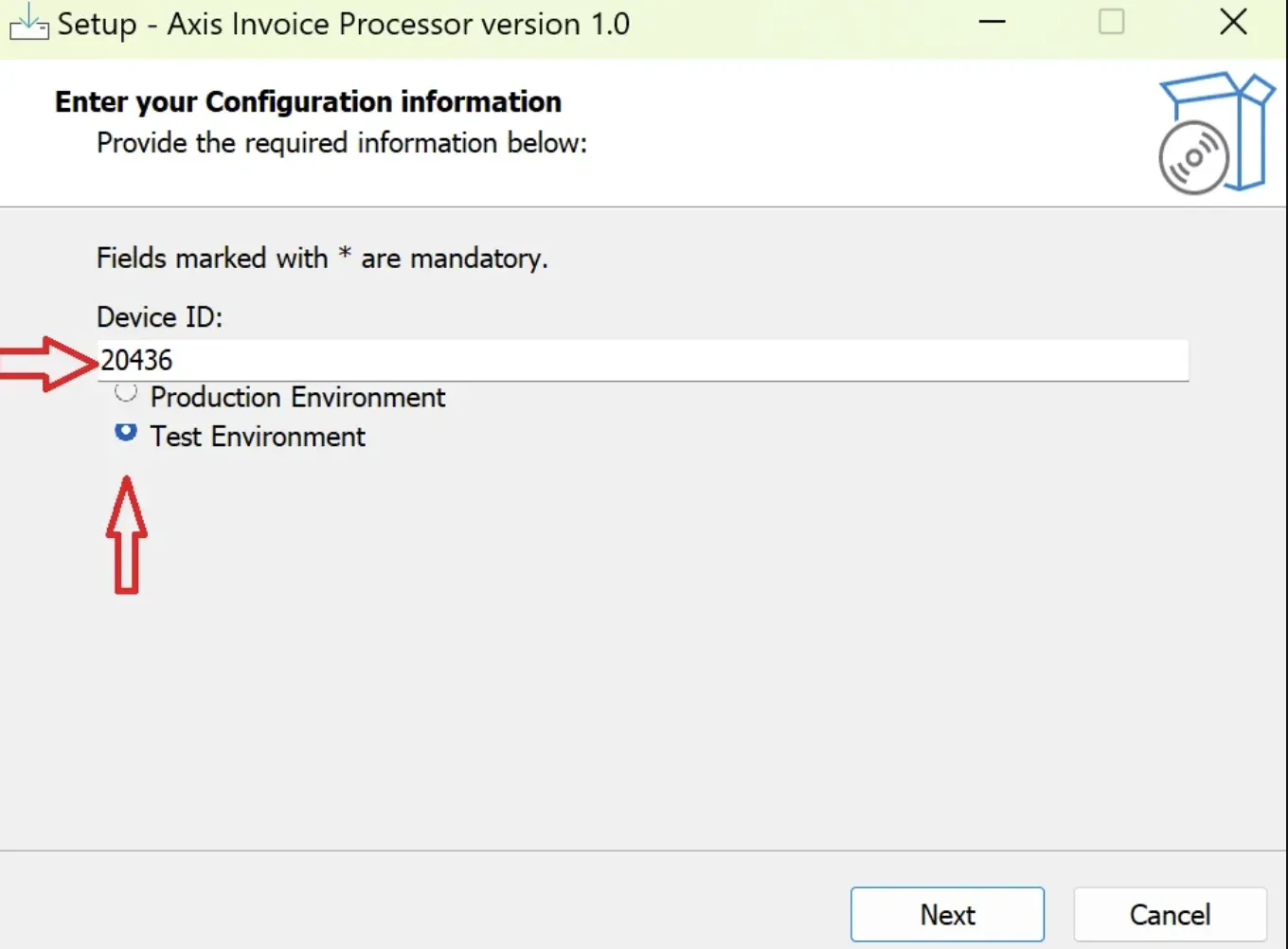
After entering the Device ID and selecting the environment, click “Next” then “Install” to complete the Excel virtual configurations.
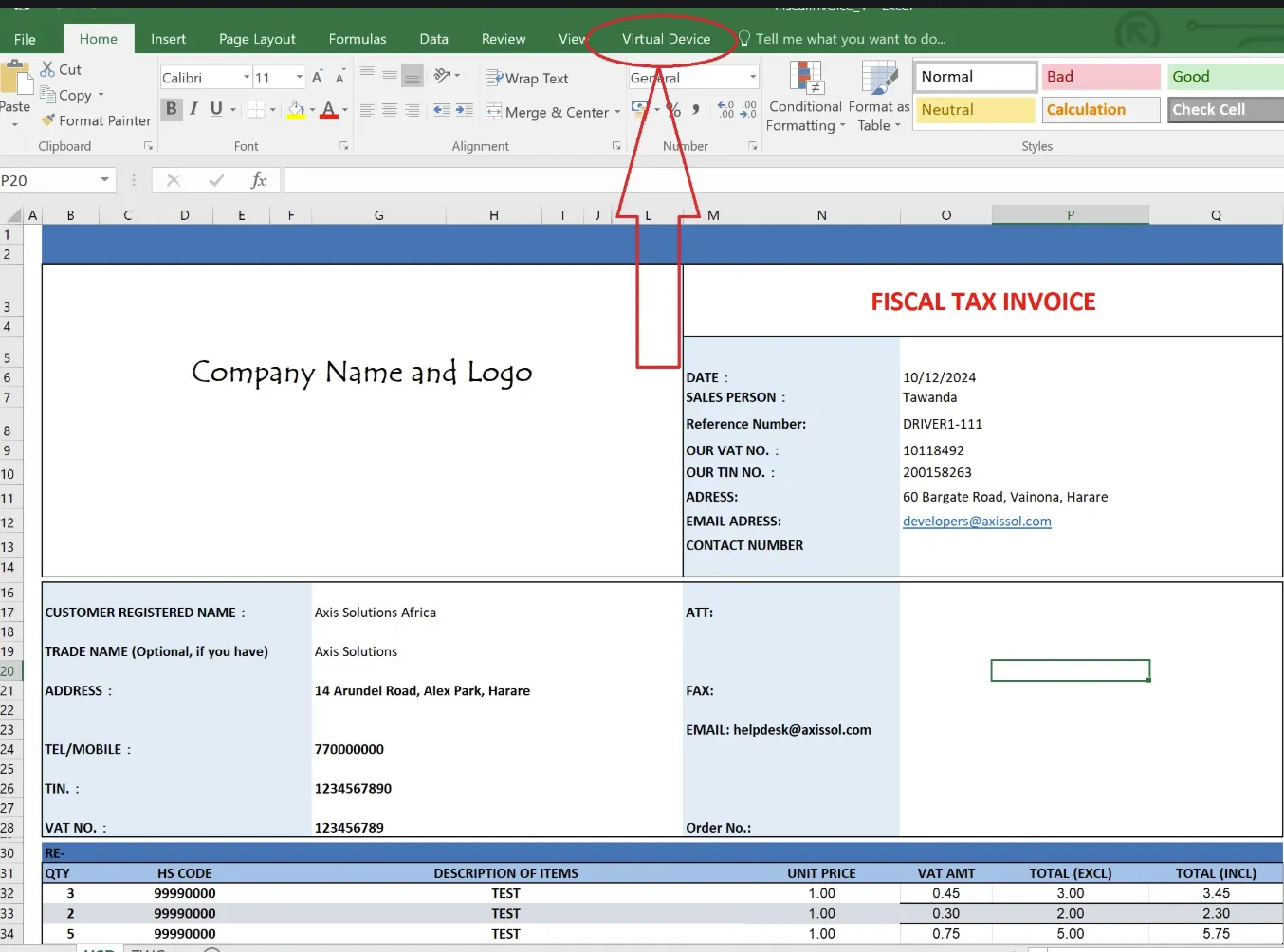
Excel Template
After installation, open the downloaded Excel template to access the Virtual Fiscalisation tools.
On the toolbar, you will find a Virtual Device tab. This tab includes the following fiscalisation operations:
-
Open Fiscal Day
-
Close Fiscal Day
-
Submit Invoice
-
Settings
-
Get Fiscal Day Status
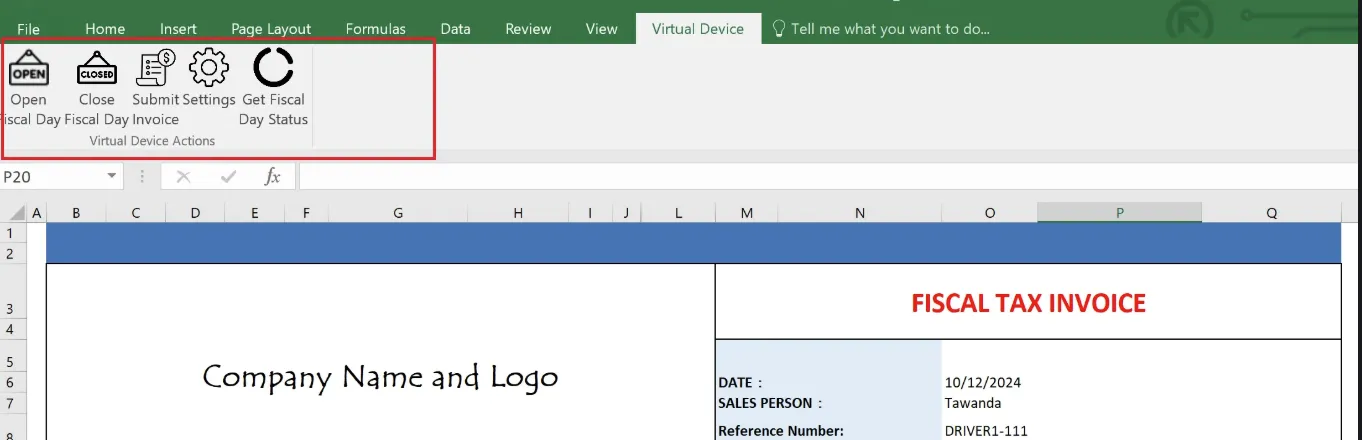
Open Fiscal Day
Retrieves certificates and the license key from your Fiscal Cloud account, indicating that the fiscal day is open and ready for transactions.
Close Fiscal Day
Closes the fiscal day once all transactions for the day are complete.
Submit Invoice
Fiscalises the Excel invoice you have created and submits it to ZIMRA’s FDMS.
Settings
Allows you to view or update the Device ID and configure the FDMS environment you are operating in.
Get Fiscal Day Status
Checks the device status to determine whether the fiscal day is currently open or closed.
Support
If you encounter any challenges or need further guidance, contact our support team at helpdesk@axissol.com.