Getting Started
Download the Virtual Print Driver
After creating a virtual device, download the Virtual Print Driver application using the link below:
Installation
To install the Virtual Print Driver, run the installer as Administrator. Once the installation is complete, two desktop shortcuts will be created:
- Fiscal Capture
- Fiscal Capture Settings
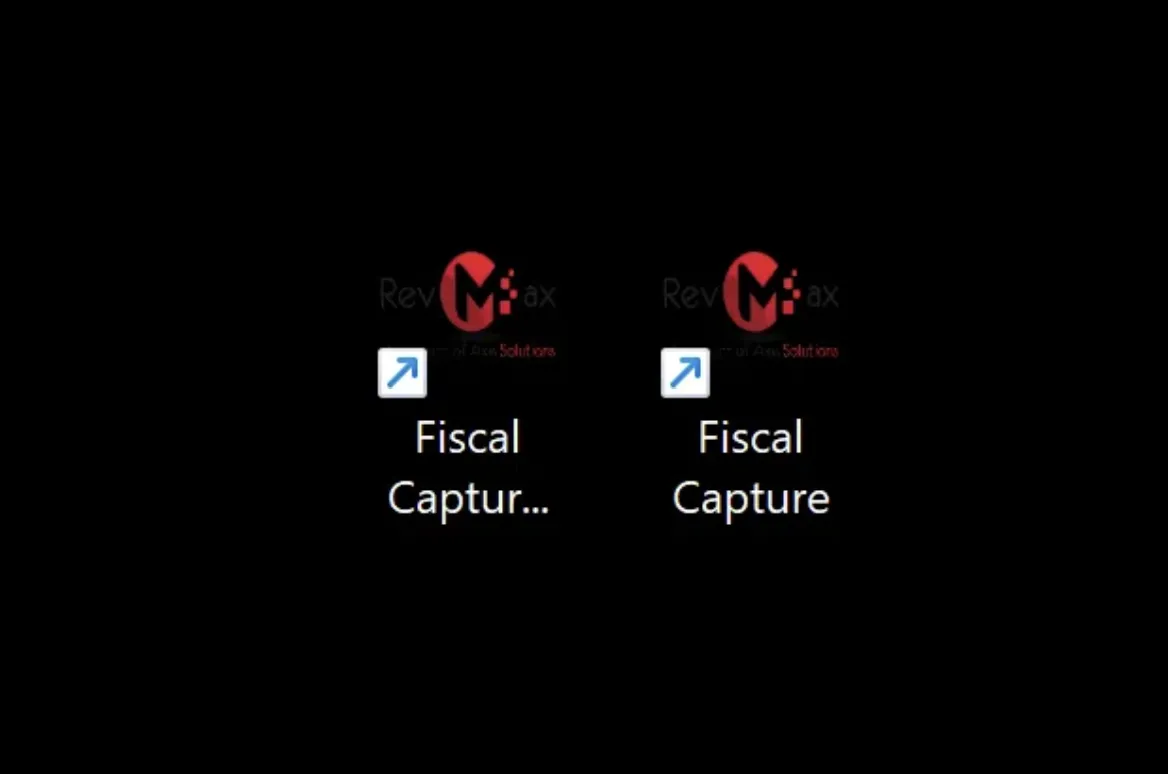
After installation, a virtual printer called “Fiscal Invoice Printer” will also be installed. This is the printer you will print to from your accounting system — it handles the fiscalisation of your invoices.
Fiscal Capture
The Fiscal Capture application is used for managing fiscal day operations, such as:
- Opening a Fiscal Day — Opens the fiscal day and prepares the device for transactions.
- Closing a Fiscal Day — Closes the fiscal day once all transactions are complete.
- Launching the Fiscal Capture Settings application.
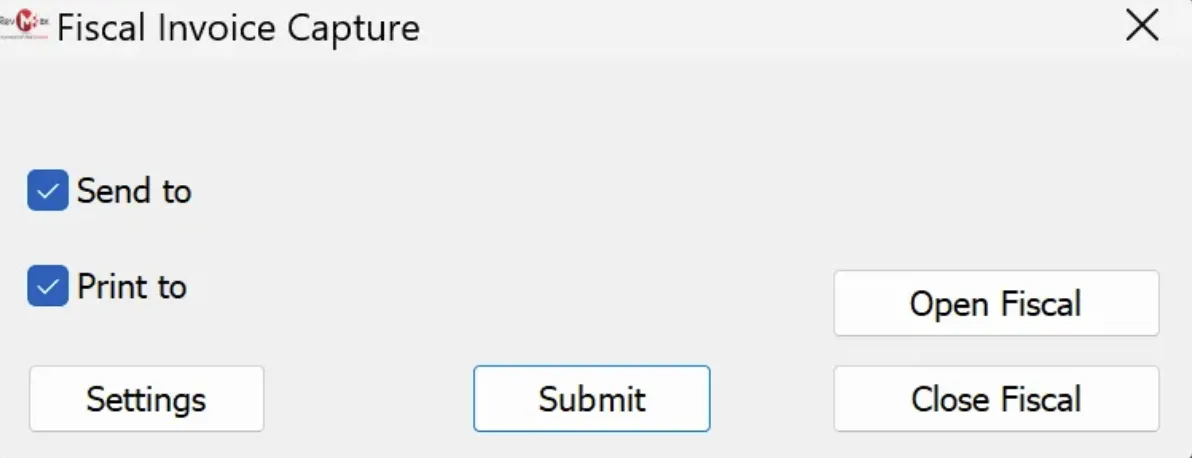
Fiscal Capture Settings
The Fiscal Capture Settings application is used for configuring various settings, including:
- Selecting the printer for hard copy invoices after fiscalisation.
- Checking the license status of your virtual device.
- Adjusting the QR code font size and format.
- Changing the position of the QR code on invoices.
- Performing fiscal day operations (open or close fiscal day).
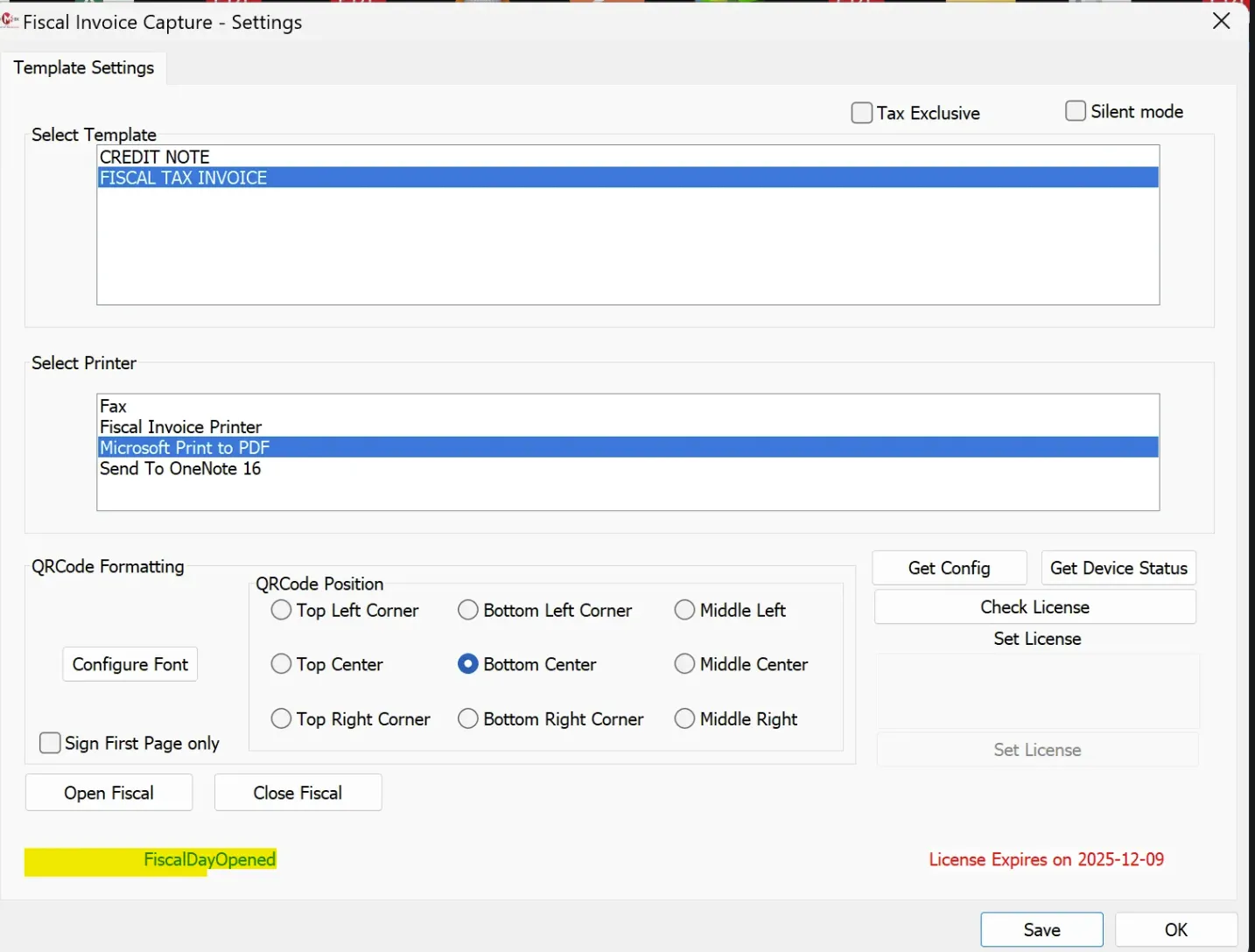
For further assistance, contact our support team at helpdesk@axissol.com.